
New Features - November 15, 2026
A big new batch of features and enhancements is now available in GroupFlow, giving you member-only ticket prices, faster check-in with membership cards, videos on your website, events that repeat on their own, and ways for members to report problems, plus updates to Website Edit Mode, your Dashboard, and more.
- Member Pricing for Events
- Membership Card and Scan Check-In
- Video Uploads
- Repeating Events
- Report Content and Block Members
🎟️ Member Pricing for Events
Events can now offer different ticket prices based on a member's status, membership plan, or whether the member has a tag, or whether they're an event staff member. For example, charge $10 for members, $20 for non-members.
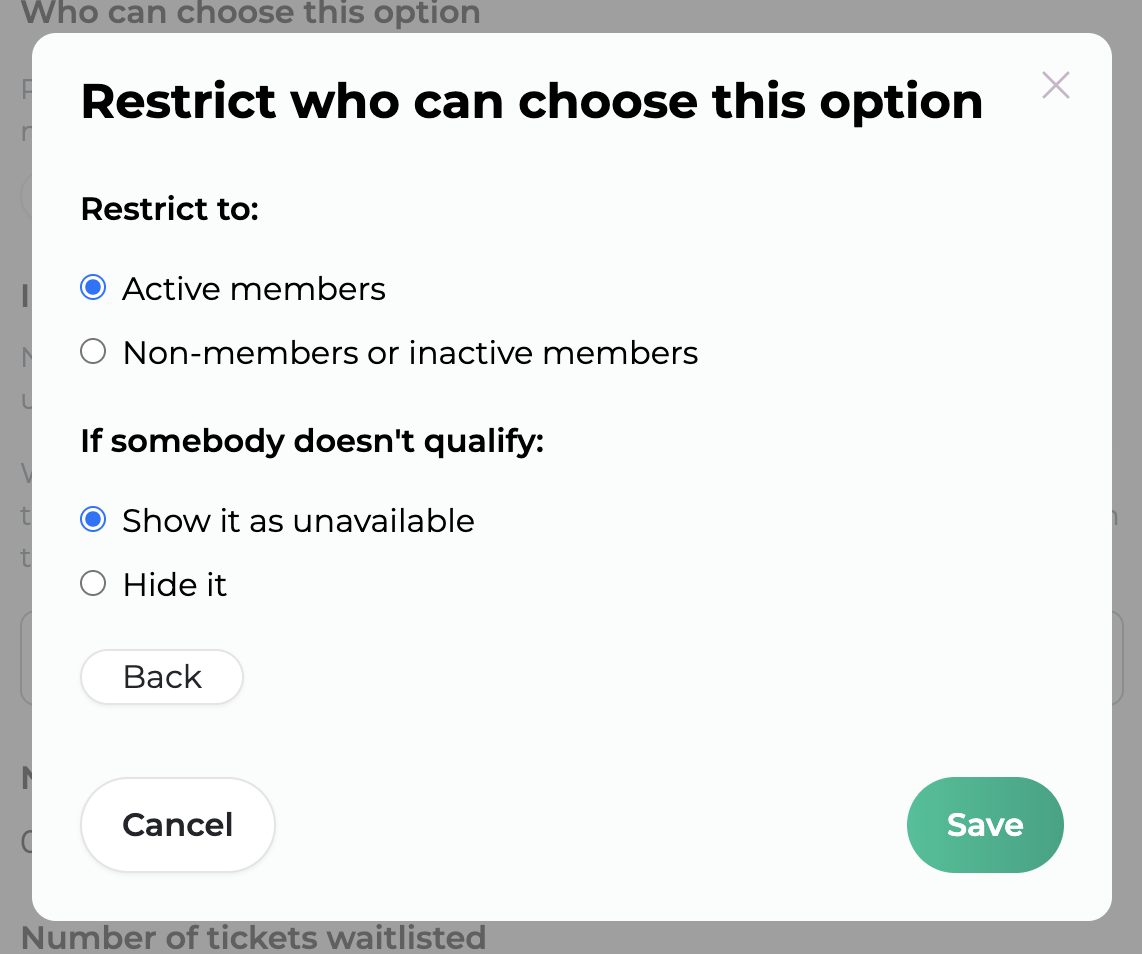
For example:
- Active members can pay a lower price, and everyone else can pay the regular price
- Members on your premium plan can attend for free, while others pay a regular price.
- Members with a "volunteer" tag can pay a discounted or free price
- Event volunteers members can pay a free or discounted price
You choose which attendees can use a given price option, or whether the option is visible to them at all.
Found under: Admin Dashboard → Events → [your event] → Pricing, then edit a price option's "Who can choose this option".
🪪 Membership Card and Scan Check-In
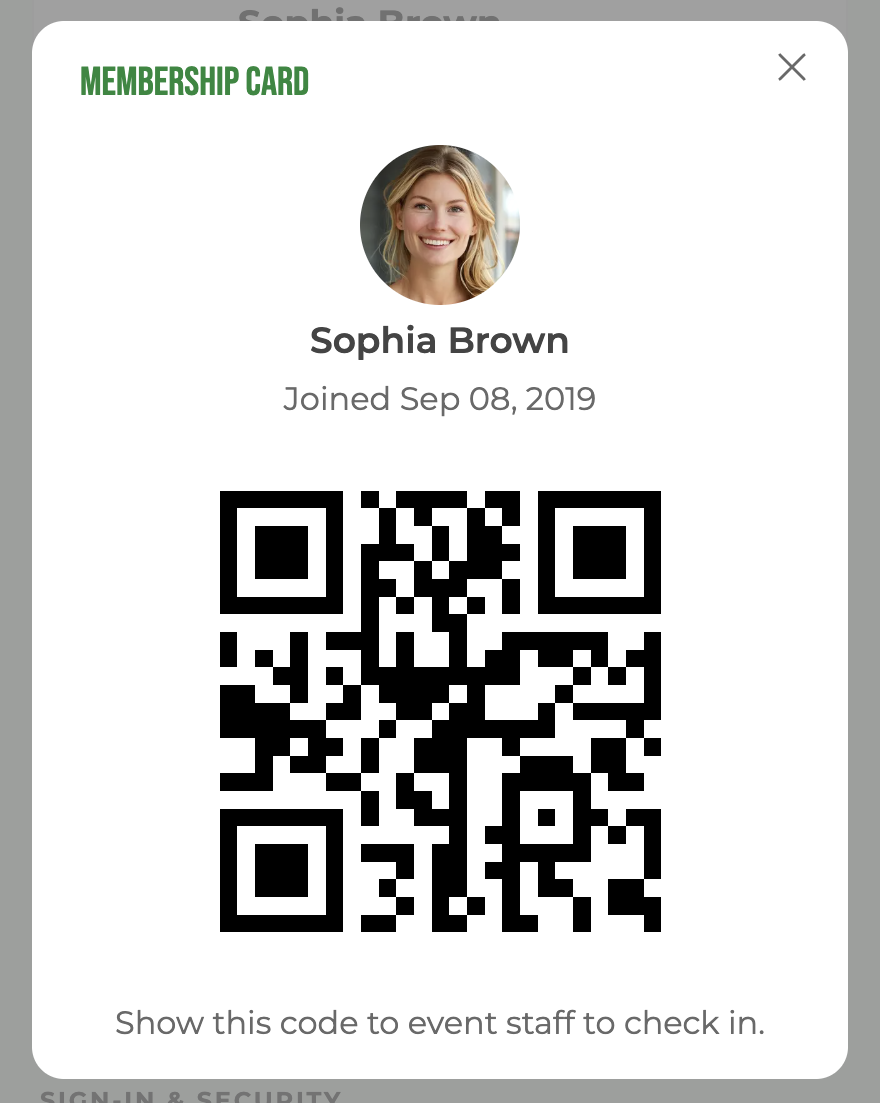
GroupFlow now gives every member a digital membership card. This card shows their name, profile photo, membership plan, and a QR code that can be scanned at events to check them in for attendance. There's no need to scroll or search through the attendee list to find the member.
- Members open their card from their account page and show the QR code on their phone
- Event staff press Scan on the event's attendance page and point the device's camera at the code
- Each scan marks the member as attended
This works well for busy events, a line at the door, or a volunteer at the entrance who doesn't know every member by name and face.
Found under: Members open Account → Membership card → Show QR code. Event staff open the event's attendance page and press Scan.
🎬 Video Uploads
Show what your group is like in motion, not just words. Upload a video, or use one from YouTube or Vimeo, and put it on a web page or in an announcement.
- Welcome and orient new members, or attract prospective ones
- Share talks and how-tos members can watch on their own time
- Play it in the background of a web page, for dramatic effect
- Autoplay it, with or without its controls
- No ads, and no sending your visitors off to YouTube
Uploaded videos count toward your plan's storage: 10 GB on Starter, 100 GB on Established, and 500 GB on Large Group. The upload field shows how much you're using.
Found under: Any editable page. Press "Edit Mode", then add a Video from the Element Library, or set a video as an element's background.
🔁 Repeating Events
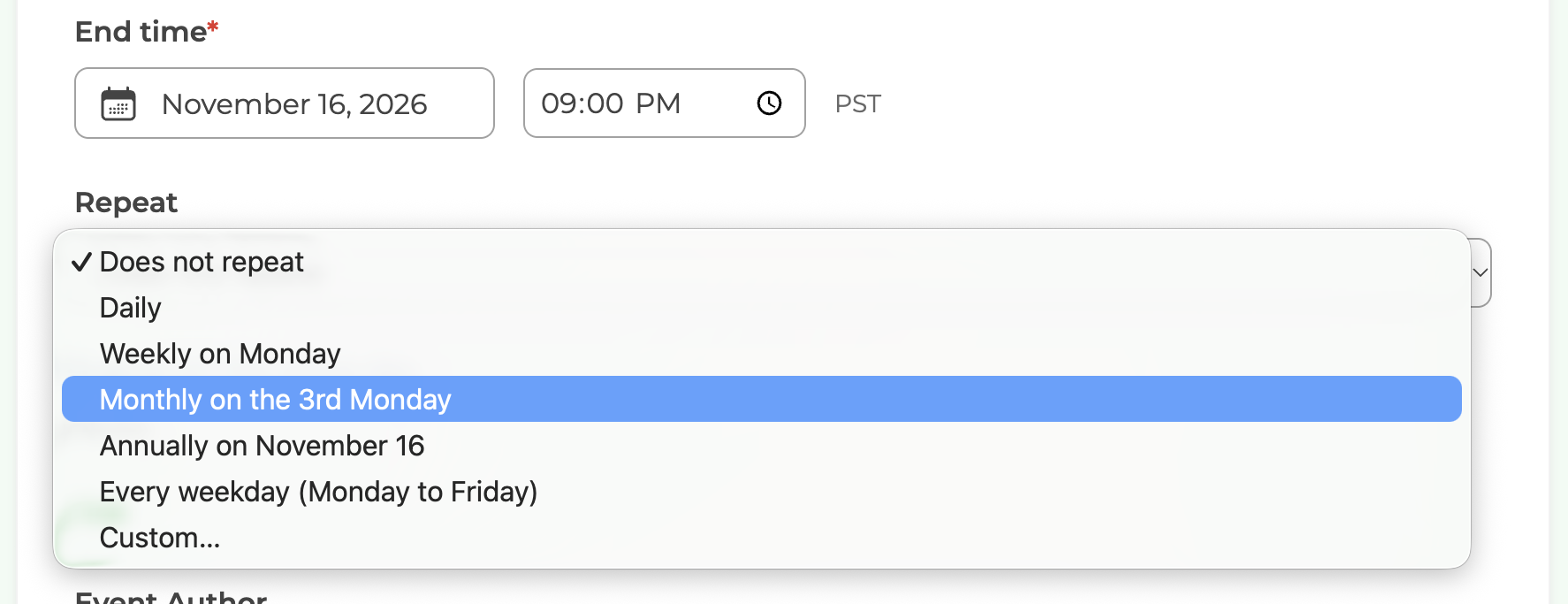
Running a weekly meetup or a monthly social no longer means copying the event, changing the date, and publishing it again every time. Turn an event into a series once, and GroupFlow takes care of the rest.
- Choose how it repeats: daily, weekly, monthly, annually, every weekday, or a custom pattern
- Dates are created for you, always 120 days ahead
- Each date is announced automatically, at a time you set
- Change one date, the ones that follow, or all upcoming dates, including ticket options and prices
- Cancel with the same choice: cancelling the following dates, or all of them, ends the series
The event's author can make their own event repeat, not just an admin.
Found under: Add event, or Edit event on an existing event, then Repeat.
🛡️ Report Content and Block Members
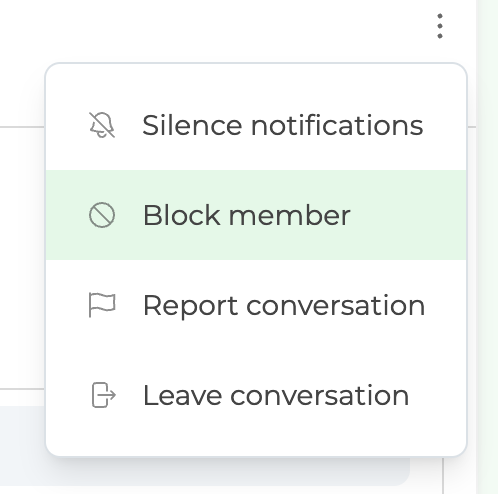
Members now have a direct way to tell you when something isn't right, and to stop messages from someone they'd rather not hear from.
- Report: a member can report a discussion message, a private conversation, a member profile or an event from its menu. A "Report issue" link in your website's footer reports the page, and visitors who aren't signed in can use it too, with their email address so you can reply.
- Block: a member can block another member from contacting them, from their private conversation's menu. While the block is in place, neither can open or send messages in their private conversation. Members manage the people they've blocked on their account page.
Each report goes by email to your group's Membership Team, and to GroupFlow Support (to comply with Apple's policy for iOS apps). When a member reports a private conversation, the email includes its most recent messages, so you can see what happened. Your Membership Team is also told when a member blocks someone.
Members and visitors also have a new Contact option for reaching your group or GroupFlow Support, and account sign-up now links to the Acceptable Use Policy.
More Enhancements
Website Edit Mode: Undo, Save, and On-Page Element Controls
Editing your website is quicker and more forgiving. Your changes now collect in one list as you work, shown on the page and in the editor, and the bar at the top of the page has Undo and Save for all of them at once. You can undo an add, clone or delete in a single step.
Working on the page itself is easier too:
- Point at any element to get its controls right on the page: move, clone, unpublish, delete, add an element before or after it, add one inside it, or select its parent
- The sidebar shows every element on the page as a tree, drafts included
- Each element's editor is split into General and Style tabs, with its own Publish and Delete buttons
- A new element from the Element Library is scrolled to and outlined, so you can see where it went
- The Website Pages screen lists your pages, with a search box
Found under: Any editable page. Press "Edit Mode".
Spam Complaints Reported on the Admin Dashboard
When a member marks one of your group's emails as spam, GroupFlow stops sending them email. Until now, nobody at the group was told. Your Dashboard's "Needs your attention" now shows how many members have reported your emails as spam, and opens a list of the reports, each of which an admin can mark as handled. Spam reports and bounced emails also appear in Recent activity.
Found under: Admin Dashboard → Dashboard → Needs your attention.
Spacing Between Elements
Set the space between the elements in your page's main section, a Block, a Two Columns column, a Hero, your footer, from that element's editor.
Events Stay Open Until They End
Announce and Re-announce, Cancel, and the RSVP settings and policies now stay available until an event ends, not just until it starts. That means you can still announce a multi-day event while it's under way. An event that has started is listed as upcoming until it ends, and its page keeps showing Add to calendar and the spots left.
Times Shown in the Group's Timezone
Members in another timezone now see your events at the right time and on the right day. Event times, and other dates and times across GroupFlow, show in your group's timezone, with the zone name, such as PST.
Admin Member Edit: Join Date, Photo Viewer, Make Active
On a member's admin page, you can now set their join date, open their photo larger, and make a Non-member Active.
Members Admins Manage Email Notification Settings
An admin with the Members role can now see and change which kinds of email a member receives, from the Email notifications section of the member's admin page.
Google and Facebook Sign-Up Asks Before Creating an Account
When someone signs in with Google or Facebook and has no account yet, GroupFlow now asks them to create one, and creates nothing until they do.
Primary Card Heading and Link Colors
Design Settings' Colors tab has Heading color and Link color options for the Primary Card.
Found under: Admin Dashboard → Design & Web → Design Settings → Colors.
Hidden Profile Answers Shown as Hidden
A member's profile now shows when they've chosen to hide an answer, rather than looking the same as a question they haven't answered.
Admin Dashboard on Mobile
The Admin Dashboard now opens on mobile, the same as on a computer.
Registration Price on the Attendee List
An event's attendee list shows the price each person registered at.